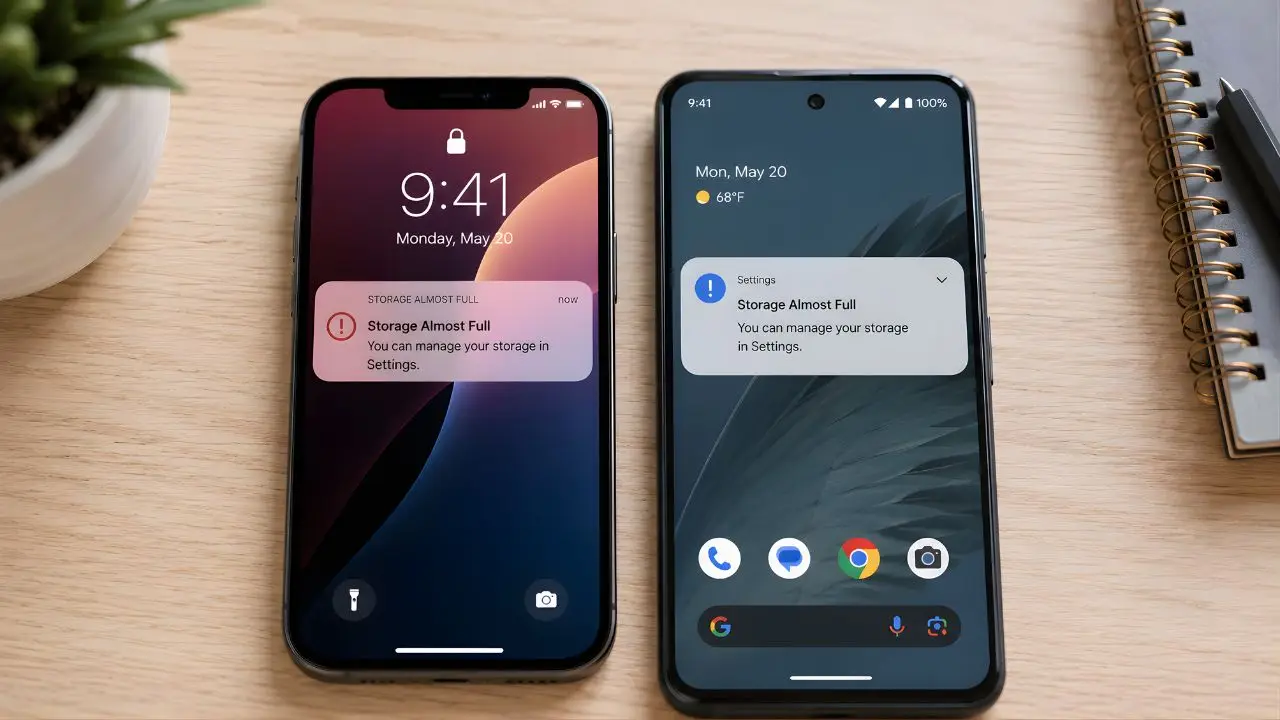
My sister called me two Christmases ago in a mild panic because her iPhone kept telling her storage was full and she couldn’t download the app she needed for a flight check-in. She had maybe 45 minutes before her Uber arrived. We fixed it in about eight minutes without touching her photos — and she had 6.7 GB free by the time she got to the airport. The culprit? Podcast downloads and a single game she hadn’t opened in eleven months, with 2.3 GB of cached data sitting inside it like a tenant who stopped paying rent.
That moment taught me something I keep reminding people: your photos are almost never the real problem. And yet the knee-jerk reaction when your phone screams “Storage Almost Full” is to start scrolling through your camera roll with a sense of dread, trying to decide which memories to sacrifice. You don’t have to do that. There’s a whole layer of junk — app cache, offline downloads, duplicate files, bloated message attachments — that builds up invisibly and is way easier to deal with than your photos ever would be.
Here’s what actually works, broken down by platform where it matters.
First: Figure Out What’s Actually Eating Your Space
Before you start deleting things at random, spend sixty seconds finding the real culprit. Both Android and iPhone have built-in tools that show you a breakdown by category — and the numbers are often genuinely surprising.
iPhone / iOS
Check Your Storage Breakdown
Go to Settings → General → iPhone Storage. You’ll see a colored bar at the top, then a list of apps sorted by size. Scroll slowly — the list includes “System Data” at the bottom, which can be enormous and is worth noting.→ Apple Support: Manage iPhone Storage
Android
Check Your Storage Breakdown
Go to Settings → Storage (exact path varies by manufacturer). On Samsung it’s Settings → Battery and device care → Storage. On Pixel it’s Settings → Storage → Free up space. You’ll see categories: Apps, Images, Videos, Audio, Documents, and Other/System.→ Google Support: Free Up Space on Android
Write down your top three categories. That’s your target list. Everything else in this guide flows from there.
App Cache: The Silent Storage Hog Nobody Clears
Apps collect temporary files — cached images, pre-loaded content, session data — and they almost never clean up after themselves. Instagram alone can accumulate 1–2 GB of cached stories and reels you’ve already watched. TikTok? Worse. A friend of mine cleared TikTok’s cache last year and got back 4.1 GB in about four taps. Four gigabytes. That’s nearly half an entry-level 16 GB phone.
On iPhone
iOS doesn’t have a single “clear all cache” button, which is honestly one of the more frustrating design choices Apple has made. Your options are: go into each app individually (many have a “clear cache” option inside their settings), or offload the app entirely — Settings → General → iPhone Storage → tap any app → “Offload App.” This removes the app binary but keeps your data and settings. The app icon stays on your home screen with a little cloud icon. Re-tap it anytime to re-download. Perfect for big games you play once a month.
On Android
Way easier. Settings → Apps → tap any app → Storage → “Clear Cache.” You can do this one by one, or use the built-in “Free up space” tool on Pixel devices which finds and offers to clear cache from your biggest offenders all at once. On Samsung, Battery and Device Care → Storage → Clean Now does something similar. Don’t tap “Clear Data” — that’s different and will wipe your login, settings, and progress.
Pro tip Clear cache on these apps first — they’re almost always the worst offenders: Instagram, TikTok, YouTube, Snapchat, Spotify, Google Maps, and any game you play regularly. Between them you can easily recover 3–8 GB on a well-used phone.
Offline Downloads Are Probably Still There From 2023
Quick question — when’s the last time you checked what you’ve got downloaded for offline use? Be honest. Most people download a Netflix season for a long flight, finish maybe two episodes, and then forget entirely that the other six are still sitting on their phone three months later. Netflix downloads are typically 500 MB–1.5 GB per episode depending on quality. A full season can easily be 8–10 GB.
The same goes for Spotify playlists downloaded for offline listening, Podcast episodes (seriously, check this one — it adds up fast), Apple Music or YouTube Music libraries, and any audiobooks from Audible or Libby. Open each app, find the Downloads section, and do a sweep. Anything you can stream again isn’t worth the local storage it’s sitting on.
Both Platforms
Where to Find Offline Downloads
Netflix: Tap the Downloads tab at the bottom. Spotify: Library → filter by “Downloaded.” Podcasts (iPhone): Library → Episodes → Downloaded. Google Podcasts / Pocket Casts (Android): Check your queue and downloaded episodes.
Duplicate Photos — Even If You’re Not Deleting, You Can Clean These Up
The whole premise of this article is that you don’t have to delete your real photos. But duplicates and burst shots are a slightly different story. You didn’t mean to keep them. They’re just… there. On iPhone running iOS 16 and later, go to Photos → Albums → scroll down to “Utilities” → “Duplicates.” iOS will show you every duplicate it found and let you merge them (keeps the highest quality version, deletes the rest) with one tap. I ran this on my phone last month and it removed 340 duplicate photos — 1.2 GB, gone, without losing a single unique image.
On Android, Google Photos does the same thing: tap your profile picture → “Manage storage” → “Review and delete” section shows duplicates and blurry photos it’s flagged. You stay in control of what actually gets deleted.
The thing nobody tells you is that burst mode — where you hold the shutter button — generates 15–40 frames per second. One moment of holding the button and you might have 60 nearly identical photos.
Message Attachments Are a Quiet Storage Nightmare
Every photo, video, voice memo, and GIF someone sends you in iMessage, WhatsApp, or any other messaging app gets stored on your device. And it adds up — slowly, invisibly, relentlessly. I’d push back on the idea that this is a minor issue. On phones I’ve helped people troubleshoot, messaging app storage has frequently been 2–5 GB, and in one case a person had 11 GB in WhatsApp media alone (they were in several large family groups for years).
On iPhone
Settings → General → iPhone Storage → Messages. You’ll see a breakdown: “Photos,” “Videos,” “GIFs and Stickers,” “Other.” Tap “Review Large Attachments” — it lists the biggest files with a delete option. Go through the top 20 and you can recover serious space.
On WhatsApp (Both Platforms)
WhatsApp → Settings → Storage and Data → Manage Storage. You can sort by contact or group, see exactly who’s sent you the most data, and delete in bulk. This is the one I always do first when someone has a WhatsApp-heavy phone.
Both Platforms
Prevent Future Buildup in WhatsApp
Go to WhatsApp → Settings → Storage and Data → toggle off “Save to Camera Roll” (iOS) or adjust “Media auto-download” settings to Wi-Fi only or manual (Android). This stops every incoming photo from auto-saving to your device.→ WhatsApp: Manage Storage
Move Photos to the Cloud — Keep Them, Just Not Here
This is the big one, and it’s worth saying clearly: you don’t have to delete your photos to free up local storage. You just have to move them off your device while keeping them accessible.
Google Photos (free up to 15 GB, then $2.99/month for 100 GB) has a “Free up space” button that removes locally-stored photos that are already backed up in the cloud. Your photos stay completely accessible in the app, synced across devices — they’re just not taking up space on your phone anymore. One tap. On Android this is baked right in; on iPhone you download the Google Photos app and it works the same way.
iCloud Photos works similarly for iPhone users. Settings → [Your Name] → iCloud → Photos → “Optimize iPhone Storage” — this keeps smaller preview versions locally and stores full-resolution versions in iCloud. You see all your photos normally; the full files download on-demand when you open one. Works really well on a solid connection. (The catch is iCloud free tier is only 5 GB, so most people pay $0.99/month for 50 GB — which is worth it.)
Who should do what Android users: Google Photos is the obvious pick — Google One at $2.99/month for 100 GB is solid value. iPhone users already in the Apple ecosystem: iCloud+ at $0.99/month for 50 GB is easiest. If you want a free option and don’t mind a slightly more manual process, Amazon Photos offers unlimited photo storage free with Amazon Prime.
The Full Checklist — Do These In Order
| Step | Where to Find It | Typical Space Saved | Platform |
|---|---|---|---|
| Clear app cache | Settings → Apps (Android) / per-app (iOS) | 1–8 GB | Both |
| Delete offline downloads | Netflix, Spotify, Podcasts apps | 2–15 GB | Both |
| Merge duplicate photos | Photos app → Duplicates / Google Photos | 0.5–3 GB | Both |
| Clear message attachments | iMessage large attachments / WhatsApp storage | 1–11 GB | Both |
| Offload unused apps | Settings → iPhone Storage / Android Apps | 1–5 GB | Both |
| Enable Optimize Storage | iCloud Photos / Google Photos backup | 5–30+ GB | Both |
Work through that list top to bottom and most people will recover 10–20 GB without touching a single original photo. If you’re on a 64 GB phone that’s perpetually gasping for air — and look, we’ve all been there — that difference is genuinely life-changing for daily usability.
One last thing: make this a quarterly habit, not a crisis response. Set a reminder every three months to run through steps 1–4. It takes about fifteen minutes once you know where everything is, and you’ll never be scrambling at the airport again… you get the idea.
What Was Your Biggest Offender?
I’m genuinely curious — was it app cache? Podcast downloads? WhatsApp media from a group chat that got out of control? Drop a comment below and let me know how much space you recovered. Especially if it was something embarrassing. We don’t judge here.