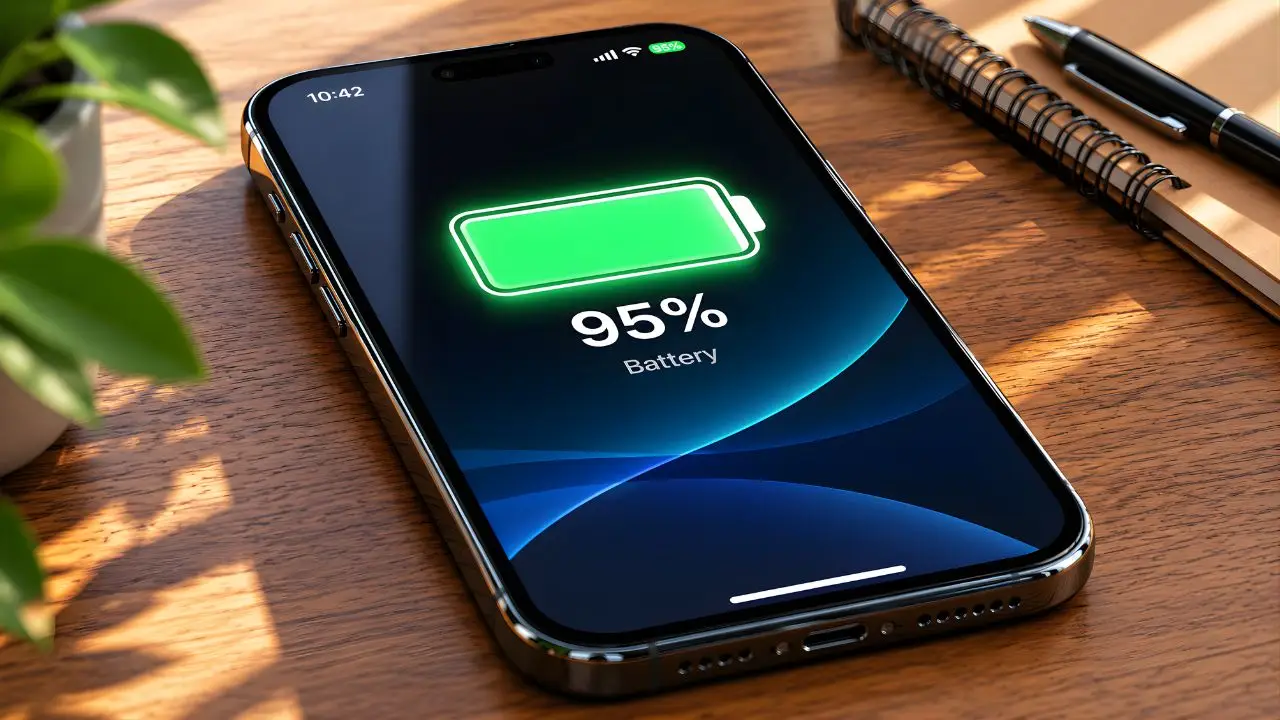
My cousin called me in a mild panic last summer. She was at a three-day music festival, her portable charger had died on day two, and by noon on day three her phone was at 11%. She’d already turned the screen brightness down. That was it. That was the full extent of what she knew to do. By 2 PM, she was borrowing a stranger’s charger just to call her ride.
The thing is, she had at least eight hours of battery life sitting completely untapped — buried in settings she’d never touched. I walked her through three of them over a borrowed phone call, and she made it to the end of the night with 22% to spare. I’ve thought about that conversation a lot since, because it’s not just her. I’d say nine out of ten people I know are walking around with a ticking time bomb in their pocket, and all the power (sorry) to fix it is right there.
So let’s get into it. Not the obvious stuff — you already know to turn brightness down. I want to talk about the settings that are doing quiet damage all day, every day, that almost nobody ever looks at.
The Real Battery Killers Nobody Talks About
Background App Refresh Is Silently Draining You
Here’s one that I genuinely didn’t know about until 2022, when a tech-savvy friend pointed it out on my iPhone. Background App Refresh means that apps — every single one that has permission — are constantly checking for new content even when you’re not using them. Your weather app is pulling forecasts. Your email client is syncing. Instagram is loading the feed you haven’t opened yet.
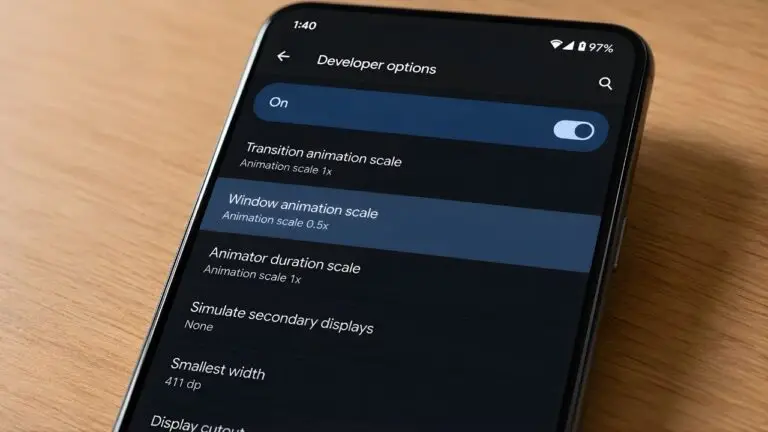
On iOS, you’ll find this under Settings → General → Background App Refresh. On Android, it lives under Settings → Apps, where you can go app by app and restrict background activity. The default for most apps? On. Always on.
Honestly, for 90% of apps, you don’t need this running. Messages, maps, maybe your music app — sure. But does your airline app need to refresh in the background while you’re sleeping? Does a game you haven’t opened in three weeks need to sync? Turn it off for everything except the two or three apps that genuinely matter, and you’ll notice a real difference by the end of the day. I cut my overnight battery drain from about 12% to under 4% just from this one change.
Your Location Settings Are a GPS Nightmare
Have you ever actually sat down and scrolled through which apps have access to your location — and on what terms?
I did this exercise once, and I found 23 apps with location access on a phone I thought I’d set up carefully. Fourteen of them were set to “Always” — meaning they could ping my GPS any time they wanted, day or night, open or closed. That’s not just a privacy problem. GPS is one of the most power-hungry hardware components on your phone. Every time an app quietly checks your location in the background, it’s burning real battery.
On iPhone: Settings → Privacy & Security → Location Services. On Android: Settings → Location → App Permissions. Go through this list. Change everything you can to “While Using” or “Never.” Delivery apps, social apps, anything that doesn’t need to track you passively — all of them can wait until you open them. The only apps that might legitimately need “Always On” are navigation apps and maybe a fitness tracker if you use one.
The thing nobody tells you is that this is also one of the fastest ways to improve your battery because the fix is permanent — you do it once and it keeps paying off.
The Settings That Do Heavy Lifting (If You Let Them)
Low Power Mode vs. Battery Saver: Use It Earlier Than You Think
Both iOS and Android have a power-saving mode — Low Power Mode on iPhone, Battery Saver on Android — and most people treat these like emergency tools. They turn them on at 15% when the phone is already gasping.
I’d push back on this pretty hard. Enabling Low Power Mode at 50% or 60% — especially on a long day where you know you won’t have access to a charger — is completely reasonable, and it can stretch your battery life by hours. These modes reduce background activity, limit visual effects, pause automatic downloads, and sometimes throttle performance slightly. For most of what people actually do on their phones (texting, browsing, watching videos), you’ll barely notice the difference.
On iPhone, you can ask Siri to turn it on or go to Settings → Battery. Android’s toggle is usually in the quick settings panel (pull down from the top of the screen). You can also set it to kick in automatically at a certain percentage, which is what I’d recommend — 30% or 35% is a good threshold if you want it as a backstop rather than a lifestyle.
Always-On Display: Beautiful, Expensive
This one hurts me a little to write because I love the always-on display on my phone. It looks sleek. But on phones where it’s enabled by default — and that’s most flagship Android phones from Samsung, Google, and OnePlus, plus the iPhone 15 Pro and newer — it’s a consistent battery tax.
The always-on display keeps a portion of your screen active at all times, showing the clock, notification icons, and sometimes a wallpaper. Tests by Android Authority in 2023 found it consumed between 5% and 9% of battery life per day depending on the device. That’s not nothing. That’s potentially an extra hour of screen-on time you’re trading away so you can glance at the clock without pressing a button.
You can turn it off under display settings on most phones. Or — and this is what I do — schedule it to only be active during waking hours, which cuts the nighttime drain entirely.
The Stuff That Sounds Obvious (But Has Layers)
Wi-Fi, Bluetooth, and 5G: The Nuanced Version
Everyone knows to turn off Wi-Fi when you’re not using it. Or… do they? Actually, this one’s a little backwards. If you’re in an area with a strong Wi-Fi signal, staying connected to Wi-Fi uses less battery than pulling data over cellular. Your phone isn’t constantly handshaking with distant cell towers. So if you’re at home or the office, Wi-Fi on is the right call.
Bluetooth is a different story. Bluetooth Low Energy (BLE) — the modern version — is actually pretty efficient on its own. The drain comes from actively connected accessories: wireless earbuds, smartwatches, car audio. If you’re not actively using something Bluetooth-connected, you can leave the radio on with minimal cost. But if you’ve got three accessories paired and two of them are sitting in a drawer at home, disconnecting those unused devices helps.
5G, though — that one’s real. The 5G radio draws noticeably more power than 4G LTE, especially in areas with spotty 5G coverage, where your phone is constantly searching for a signal it can’t quite hold onto. If you’re in a city with strong 5G, fine. If you’re in a suburban or rural area where coverage is patchy, dropping to LTE can add 30 to 45 minutes of screen-on time per day. On iPhone: Settings → Cellular → Cellular Data Options → Voice & Data, and switch to LTE. On Android this varies by manufacturer, but it’s usually under Network settings.
Who Actually Needs to Do All This?
Look, not everyone needs to go full battery-optimization mode. If you have easy access to a charger throughout the day and you go to bed with 40%, you’re probably fine leaving most of these as-is.
But if you’re regularly hitting 20% by 3 PM, or you travel a lot, or you work outdoors without charger access — these settings will genuinely change your daily experience. The people who benefit most are:
- Anyone who commutes more than 90 minutes a day
- Travelers who are away from outlets for stretches
- People using older phones where battery capacity has degraded
- Festival-goers, hikers, or anyone spending extended time away from power (hi, my cousin)
For that last group especially, I’d say these changes aren’t optional — they’re essential. And the beautiful thing is, once you do the initial setup, most of it is just there, quietly working.
One More Thing: Your Screen Timeout Is Probably Too Long
This is small, but it adds up. Most phones ship with a screen timeout of 30 seconds to a minute. Every time you put your phone down and it stays lit up for that full window before going dark, that’s wasted energy. Change it to 15 seconds — you’ll adapt within a day, and it cuts a genuinely surprising amount of passive drain over the course of a week.
You’ll find this under Display settings on pretty much every phone. It takes thirty seconds to change and you’ll never think about it again. That’s the kind of fix I love — one and done.
A Real Test I Ran
Last October, I took my Pixel 7 — which at the time was getting about 5.5 to 6 hours of screen-on time — and went through every setting in this article in one sitting. I disabled background refresh for 34 apps I didn’t need syncing passively. I switched location from “Always” to “While Using” for 11 apps. I turned off the always-on display overnight. I dropped to LTE in my neighborhood, which has inconsistent 5G at best.
The following week, I averaged 7.8 hours of screen-on time. No new battery, no hardware change. Just software. The gap between what most people’s phones can do and what they actually do is genuinely surprising once you start poking around.
What setting has made the biggest difference for you? I’m especially curious whether the Background App Refresh change moves the needle as much for other people as it did for me — drop a comment below and let me know what you found.