My brother-in-law handed me his Galaxy S23 last March and said, “I think it’s dying. It’s so slow I want to throw it at a wall.” I spent about fifteen minutes with it. No factory reset, no new apps, no hardware involved — just settings. By the time I handed it back, it was noticeably faster. He looked at me like I’d performed surgery.
I hadn’t. I’d just been in there before.
The truth is that Android ships with a bunch of default configurations that are fine for general use but quietly eat performance in ways you never see. Most of it isn’t obvious unless someone points it out. So consider this me pointing it out. These are the ten settings that actually move the needle — tested, used, and in a few cases accidentally discovered by me making my own phone worse before making it better.
First, Unlock Developer Options (You’ll Need This)
Before we get into anything else, a few of the best tweaks live behind a hidden menu called Developer Options. Here’s how to unlock it: go to Settings → About Phone → Software Information, then tap “Build Number” seven times in a row. Seriously, seven taps. You’ll get a little toast notification that says “You are now a developer.”
Developer Options will now appear in your main Settings menu, usually near the bottom. Don’t be intimidated by it — you’re not going to break anything by changing the specific settings I mention.
The 10 Settings Worth Your Time
1. Reduce Animation Speeds (This One’s Immediately Visible)
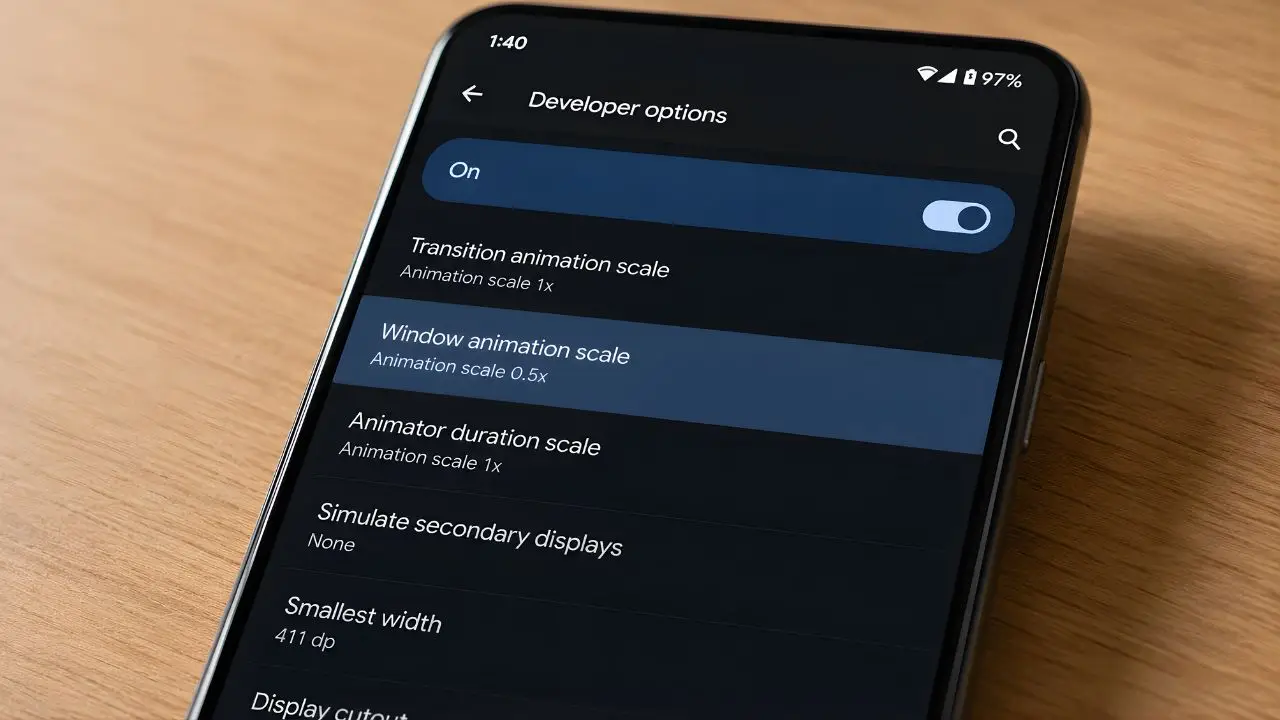
This is the first thing I do on any Android phone. In Developer Options, scroll down until you see three entries: Window Animation Scale, Transition Animation Scale, and Animator Duration Scale. All three are set to 1x by default.
Change them all to 0.5x.
The difference is instant and surprisingly dramatic. Every tap, every swipe, every app open — it all feels snappier because the animations that play between those actions are running at half speed. Your phone isn’t actually processing faster, but it feels like it is, which is honestly most of what “speed” means in day-to-day use. Some people turn them all the way to “Off” (0x), which is even faster but starts to feel a little clinical. I prefer 0.5x — it’s the sweet spot.
2. Turn Off Adaptive Battery (If You’re Not on a Tight Battery Budget)
Adaptive Battery is a feature that learns which apps you use most and deliberately limits background activity for everything else. Sounds good in theory. In practice, if you open an app you haven’t touched in a few days, there’s often a half-second delay while the system “warms it up” before it loads.
You’ll find this under Settings → Battery → More Battery Settings → Adaptive Battery. Toggle it off.
I’d push back on the common advice to always keep this on. If you’re charging once a day and your battery health is decent, the trade-off isn’t worth it. Your apps will open faster and more consistently.
3. Disable App Notifications for Apps You Never Check
This one sounds like a battery tip, but it’s actually a performance tip too. Every app notification that arrives wakes a portion of your system, lights up the screen, and runs a small background process to display it. When you’ve got forty apps pinging you — news alerts, social apps, delivery trackers, games you downloaded once in 2024 and forgot about — that background noise adds up.
Go to Settings → Notifications → App Notifications and sort by “Most Recent.” Scroll through. You’ll probably find at least fifteen apps sending notifications you’ve been dismissing for months without thinking about it. Turn them off. It takes five minutes and the benefit is ongoing.
4. Switch to a Faster DNS Server
This one surprises people. Your DNS server is what translates website addresses into actual IP addresses your phone can connect to — and your carrier’s default DNS server is almost never the fastest option. Switching to a faster one means websites and app content load more quickly, which isn’t about raw phone speed but it absolutely affects how fast everything feels when you’re using apps that pull from the internet (which is basically all of them).
Go to Settings → Connections → More Connection Settings → Private DNS. Select “Private DNS Provider Hostname” and type in 1.1.1.1 (Cloudflare) or 8.8.8.8 (Google). In 2025, Cloudflare’s DNS consistently ranked fastest in third-party testing, with average response times under 14 milliseconds in most regions. Save and you’re done.
5. Limit Background Processes in Developer Options
Back in Developer Options, there’s a setting called Background Process Limit. By default, it’s set to “Standard Limit,” which means Android decides how many background apps to keep alive in memory at once.
Change this to “At Most 3 Processes.”
Unless you’re actively switching between six apps in rapid succession, you don’t need more than three apps sitting in memory. Limiting this means Android has more free RAM available for whatever you’re actually doing right now, which translates to faster app performance and less lag when multitasking between your most-used apps.
6. Force GPU Rendering
Also in Developer Options: find Force GPU Rendering and turn it on. This forces your phone to use the graphics processor for 2D drawing tasks in apps, rather than the CPU.
The CPU is your phone’s general-purpose brain. The GPU is specifically designed for rendering visuals. Making apps use the tool designed for the job typically results in smoother scrolling and faster UI rendering — especially in apps that weren’t optimized especially well. I noticed the biggest difference in older apps and news readers, where scroll performance went from slightly choppy to genuinely smooth.
7. Clear Cached Data for Heavy Apps (Not All at Once)
There’s an old piece of advice that says to clear all cached data at once to free up space. Honestly, that’s a bit overkill, and it causes all your apps to rebuild their caches from scratch, which actually makes things slower for a day or two while they catch up.
Instead, target the heavy hitters: Chrome (or whatever browser you use), Google Maps, YouTube, and any social apps you use daily. These apps accumulate hundreds of megabytes — sometimes gigabytes — of cached data over time, and that bloated cache can actually slow down their load times.
For each app, go to Settings → Apps → [App Name] → Storage → Clear Cache. Do this for your top five or six heaviest apps. Just those. Not everything.
8. Turn Off “Hey Google” Hotword Detection (If You Don’t Use It)
The “Hey Google” always-on voice detection is a genuinely useful feature — if you use it. If you don’t, it’s a microphone that’s passively listening at all times, running a background process constantly, and using both battery and CPU resources that could go elsewhere.
To turn it off: open the Google app, tap your profile picture, go to Settings → Voice → Voice Match, and disable “Hey Google.” If you’re not someone who talks to their phone unprompted, this is a clean, consequence-free performance gain.
9. Disable or Replace Your Default Launcher (Hear Me Out)
This one takes a few more minutes, but — hear me out on this one — the launcher is the app that runs your home screen, and if it’s bloated with widgets, animated wallpapers, live weather overlays, and gesture effects, it’s eating resources constantly. Not occasionally. Constantly.
If your phone came loaded with a manufacturer launcher full of widgets you never use (Samsung’s One UI and Xiaomi’s MIUI are notorious for this), consider switching to a lightweight launcher like Nova Launcher or Microsoft Launcher. Both are free. Nova Launcher especially is well-regarded for how little memory it uses compared to OEM alternatives.
Or — and this is the simpler option — just strip your current launcher down. Remove the widgets. Set a static wallpaper instead of a live one. Kill the app suggestions row. You’d be surprised how much this helps, especially on mid-range phones.
10. Restrict Mobile Data for Apps That Don’t Need It
This last one is less about raw speed and more about background traffic competing with what you’re actively doing. When you’re loading a page or streaming something, apps running data in the background are sharing your connection and, to a lesser extent, your processor.
Go to Settings → Apps, pick any app you only use on Wi-Fi (games, streaming apps you use at home, large social apps you browse casually), tap Mobile Data, and disable it. Now those apps can only load content when you’re on Wi-Fi. Less background competition means more consistent performance when you actually want speed.
Who Should Actually Do All of This?
Not everyone needs to work through the full list. Here’s a rough guide:
Do the animation tweak (Tip 1) regardless of what phone you have. It takes sixty seconds and the effect is immediate. No exceptions.
Tips 2, 3, 8, and 10 are good for anyone who’s noticed their phone feels laggy or slow at random times throughout the day. They’re also the easiest — no Developer Options required for most of them.
Tips 5, 6, and maybe 9 are for people on older phones (2022 or earlier) or mid-range devices (anything under $400 at launch) that are really struggling. These require a bit more digging but will make the biggest difference if your hardware is showing its age.
Tips 4 and 7 apply to everyone, but especially if you use data-heavy apps frequently and live somewhere with variable connection speeds.
A Quick Real-World Test
When I ran through this list on my Pixel 7a in January 2026, the biggest single improvement was the animation scale change — obvious, immediate, night and day. The second biggest was the background process limit combined with GPU rendering. App switching went from occasionally hitching to feeling genuinely fluid.
The phone isn’t new. It’s not going to benchmark like a flagship. But for what I actually do — messaging, browsing, maps, podcasts, the occasional photo editing — it feels as fast as it did the day I took it out of the box. That matters. You don’t need a new phone if your current one just needs a little tuning, you know?
Which of these did you try first, and did it make a difference? I’m especially curious whether the DNS switch had any noticeable effect for people — it’s the tip I get the most skepticism about, and yet it’s the one that consistently surprises people once they test it. Drop a comment below.